It happens in seconds.
You’re checking your email, going through messages from friends, family, customers, or businesses you deal with every day. One message catches your attention. Maybe it’s from Microsoft warning that your account has been compromised. Perhaps it’s a notice from your bank about suspicious activity, or an email claiming a package couldn’t be delivered.
You click the link. A few moments later, something doesn’t feel right.
Was that email legitimate? Did you just give someone access to your computer? Are your passwords, banking information, or personal files now at risk?
The good news is that clicking on a suspicious email doesn’t automatically mean your computer has been hacked. But what you do next can make a tremendous difference.
I’ve been dealing with quite a few of these situations recently at Bob’s Computer Service. Some involve older adults who clicked something that looked perfectly legitimate. Others involve businesses where one suspicious email created the possibility of a much larger cybersecurity problem.
And here’s something I’ve learned after years of working with computers: Cybercriminals don’t care how old you are, how much money you make, or how successful your business is. They’re looking for an opportunity.
Whether you’re a retiree checking your email at home or a business owner managing an entire office, the risks are very real.
First, What Actually Happens When You Click a Suspicious Link?
One of the biggest misconceptions I encounter is that clicking a malicious link automatically infects your computer. That’s not necessarily true. Several possibilities exist, and understanding the difference matters.
1. You clicked the link, but nothing else happened
You may have opened a suspicious website and immediately closed it. You didn’t enter any passwords, download software, or provide personal information. In many cases, that’s where the situation ends.
However, some malicious websites attempt to exploit security vulnerabilities or trigger unwanted downloads. Although an updated computer and modern browser provide important protections, they don’t eliminate every risk.
What to do: Close the website, don’t revisit it, make sure your security software is current, and run a full antivirus scan. Check your downloads folder for anything unexpected. If nothing was downloaded, no information was entered, and your computer is behaving normally, that’s reassuring. It isn’t absolute proof that nothing happened, but it generally represents a lower risk situation.
2. You entered your username or password
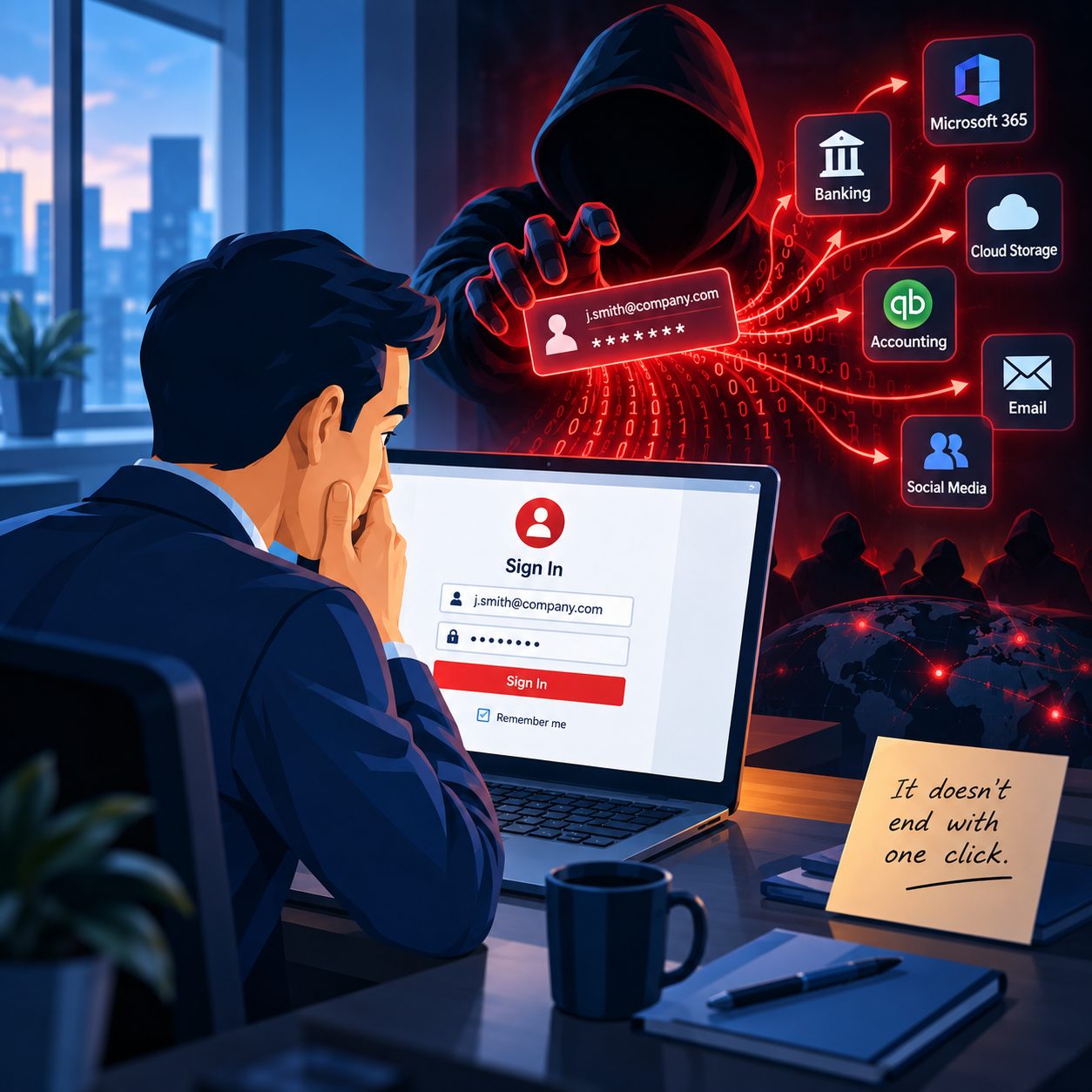
This is where things become more serious. Cybercriminals often create convincing copies of legitimate websites. They might look exactly like Microsoft 365, Gmail, Amazon, or your bank. You enter your username and password, expecting to sign in. Instead, you may have handed those credentials directly to a criminal.
The website might even redirect you to the real service afterward, making everything appear normal. Now someone else may have the information needed to access your account.
What to do: Using a trusted device, immediately change the affected password through the company’s real website. Change it anywhere else you reused it, enable multifactor authentication, and review recent account activity. If it’s a business email account, notify your IT provider immediately. Simply changing a password may not be enough.
3. You downloaded something or allowed someone into your computer
This is the situation that concerns me most. A suspicious email may direct you to download a document, install a security update, or call a supposed technical support number. Sometimes a fake warning appears claiming your computer is infected and instructing you to call Microsoft or another well-known company.
The person on the phone may sound professional, patient, and extremely convincing. They might even walk you through installing remote access software. Once they do, they may be able to control your computer, access files, or try to capture sensitive information.
What to do: If you installed suspicious software, gave someone remote access, or believe your computer is actively compromised, disconnect it from the internet. Turn off WiFi or unplug the network cable. Do not continue using that computer for banking, email, or entering passwords until it’s been evaluated. If you shared financial information, contact your bank immediately using its official phone number.
The Warning Signs I Tell My Customers to Watch For
Not every phishing attack announces itself with strange spelling or an obviously suspicious email address. Many are professionally written, complete with company logos and convincing explanations. Here are some of the warning signs I encourage customers to recognize.
A sudden sense of urgency
Your account will be closed in 30 minutes. Your payment has failed. Your computer is infected. Criminals want you reacting quickly instead of thinking carefully.
An email address that doesn’t match the company
A message may say it’s from Microsoft while coming from an unrelated domain. Always examine the actual sender address, not just the displayed name.
Requests to verify passwords or security codes
Legitimate companies don’t need you to disclose your password or provide a verification code to an unexpected caller. Be especially suspicious of requests to approve an authentication notification you didn’t initiate.
Unexpected security warnings and phone numbers
A website suddenly claims your computer is locked and tells you to call technical support. Real security problems aren’t diagnosed through random browser popups.
Unexpected attachments or downloads
An invoice you weren’t expecting, a document asking you to enable special features, or software that needs to be installed before you can view a file should raise questions.
One more thing worth mentioning: Just because an email appears to come from someone you know doesn’t mean it’s safe. I’ve seen situations where legitimate email accounts were compromised and used to send malicious messages to existing contacts. When the message comes from someone familiar, people naturally become less suspicious. That’s exactly what criminals are counting on.
An Important Lesson From Working With Seniors
A significant part of my work involves helping older adults with their computers. Many of these customers are perfectly capable of using technology. They pay bills online, communicate with family, manage medical appointments, and handle their finances. But today’s scams are often designed to create fear and confusion.
Imagine receiving an email saying someone accessed your bank account or that your Microsoft account is about to be disabled. You want to fix the problem. So you follow the instructions. That’s a completely understandable reaction, and it’s exactly the behavior the scammer wants.
I’ve worked on quite a few computers recently where customers clicked suspicious links, encountered fake warnings, or were convinced they needed technical assistance from someone who wasn’t actually affiliated with the company they claimed to represent.
Sometimes we find nothing malicious. Other times, we discover remote access software, suspicious account activity, or changes that need attention. And occasionally, the biggest challenge isn’t removing a virus. It’s helping the customer understand what happened and whether their personal information may have been exposed.
My advice is simple: If someone unexpectedly tells you that your computer or account is in danger, don’t let that person dictate how you respond. Close the message, contact someone you trust, and verify the situation independently. There is absolutely nothing wrong with asking for help before doing anything else.
Even Successful Businesses Are Vulnerable
One reason I wanted to write this article is that cybersecurity incidents aren’t limited to residential computers. We’ve seen cyber incidents affecting organizations throughout Western Massachusetts, including large institutions with professional staff, substantial resources, and established technology systems.
If organizations with dedicated technology departments can experience cybersecurity incidents, smaller businesses certainly need to take these threats seriously. I work with small businesses throughout Springfield, MA, and neighboring communities such as Longmeadow, and I try to emphasize this: You don’t need to be a large company to have information worth stealing.
A small accounting office may have sensitive financial records. A law office may hold confidential client documents. A medical practice may store protected patient information. Even a business with three or four employees may depend on email, Microsoft 365, banking services, and shared files to operate.
Consider what could happen if someone gained access to a business email account. They might:
- Read confidential correspondence and download attachments.
- Send convincing phishing emails to customers or vendors.
- Create hidden email forwarding rules to monitor future messages.
- Intercept invoices and attempt to redirect payments.
- Access other services connected to that email account.
- Attempt to compromise additional employees or systems.
And here’s the frightening part. Your computer might continue working perfectly normally. No popups. No strange noises. No obvious warning signs. Meanwhile, someone may be accessing information in the background. That’s why business email security involves much more than installing antivirus software.
Why Changing Your Password Might Not Be Enough
This is particularly important for businesses using Microsoft 365, Outlook, or other cloud email services. If an attacker gains access to an account, changing the password is an essential first step. But additional steps may be necessary.
An attacker may already have an active session, modified account recovery information, registered an unauthorized authentication method, or created email forwarding rules.
In Microsoft 365 environments, a proper investigation may involve revoking active sessions, reviewing sign-in logs, checking authentication methods, examining inbox rules, and identifying suspicious applications that have been granted access. Microsoft specifically includes these types of checks in its guidance for responding to compromised accounts.
The important takeaway is that a computer can be clean while an email account remains compromised. That’s why I investigate the circumstances rather than assuming an antivirus scan tells the whole story.
Six Things to Do Immediately After Clicking Something Suspicious
If you’ve clicked on an email and aren’t sure what happened, this is the general process I recommend.
- Stop interacting with the suspicious website. Don’t enter anything else, download additional files, call numbers displayed on the page, or follow instructions that appear on your screen.
- Disconnect the computer if compromise is suspected. This is especially important if you installed unknown software, granted remote access, or see signs of active malicious activity. If you only opened a webpage, disconnecting may not be necessary.
- Secure any account information you entered. From a trusted device, change affected passwords, enable multifactor authentication, and review recent sign-ins. Contact your IT provider if a work account was involved.
- Have the computer checked for malicious software. Update your antivirus and perform a full scan. If unknown remote access software or other suspicious programs were installed, a more thorough evaluation may be needed.
- Review your accounts and financial information. Watch for unusual sign-ins, password reset notifications, unexpected outgoing emails, unauthorized transactions, or changes to account settings. Contact your financial institution promptly if banking information may be affected.
- Document what happened and ask for help when needed. Note when the incident occurred, what you clicked, whether you entered information, and whether anything was downloaded or installed. For business incidents, preserve suspicious messages and promptly follow your organization’s reporting procedures.
These steps are consistent with guidance from the Federal Trade Commission on responding to phishing scams and potential malware infections.
When Should You Call a Computer Professional?
This is probably the question I get asked most often. And my answer is that not every suspicious email requires a service call. If you received a suspicious email, recognized it, and deleted it without interacting, you usually don't need to do anything beyond reporting it as phishing.
If you clicked a link but didn’t enter information or download anything, a security scan and some basic precautions may be sufficient. However, I strongly recommend professional assistance in some circumstances.
Call promptly if:
- You entered your email password, banking information, or other sensitive credentials into a suspicious website.
- Someone claiming to be technical support remotely accessed your computer.
- You installed an unfamiliar program or browser extension.
- Your computer begins displaying unusual behavior, suspicious popups, or security warnings.
- You’re receiving unexpected multifactor authentication requests.
- Your contacts are receiving messages that you never sent.
- You notice unfamiliar sign-ins or changes to your email account.
- A business computer or account containing customer, financial, or confidential information may have been exposed.
For business owners, I recommend an even lower threshold for reporting incidents. A compromised account can affect much more than the employee who clicked the link.
If there’s a reasonable possibility that company information, client records, or financial systems were accessed, getting assistance early can help contain the situation and determine what additional steps are necessary. In situations involving regulated or sensitive information, a business may also need to evaluate notification and reporting obligations.
What I Actually Look For When Someone Calls Me
When someone contacts Bob’s Computer Service because they clicked a suspicious link or believe they’ve been scammed, I don’t automatically assume the worst. I start by finding out exactly what happened.
Did they simply open a webpage? Did they enter credentials? Did they install anything? Did someone access their computer remotely? Are we dealing with a possible computer infection, an account compromise, or both?
From there, I can investigate the most relevant areas. That may include checking for malicious software, reviewing installed programs and remote access tools, examining startup items, investigating browser changes, reviewing account security settings, and looking for evidence of suspicious activity.
For business customers, the investigation may also extend to Microsoft 365, account permissions, email forwarding rules, and other connected services.
Sometimes the computer is fine, and I can reassure you based on what I checked. Other times, real issues need to be corrected. And occasionally, the safest recommendation is to reset or rebuild a computer rather than take unnecessary chances with an installation that may have been seriously compromised.
The goal isn’t to sell someone a repair they don’t need. It’s to determine what happened, what remains at risk, and the most reasonable way to move forward.
A Few Simple Habits That Can Prevent a Much Bigger Problem
I always tell customers that good cybersecurity isn’t about becoming a computer expert. It’s about developing a few habits that make it harder for criminals to succeed.
Don’t use an unexpected email link to access your bank or an important account. Open your browser and go directly to the company’s website.
Use unique passwords for important accounts, preferably with a reputable password manager. Enable multifactor authentication wherever possible. Stronger methods, such as passkeys or security keys, can provide additional protection against phishing.
Keep your computer, browser, and security software updated. Maintain reliable backups of important files, and make sure you can actually restore them.
Most importantly, don’t let an unexpected email, phone call, or popup pressure you into taking immediate action before verifying what’s happening. That brief moment of hesitation could save you an enormous amount of trouble.
One Last Thing: Don’t Be Embarrassed to Ask for Help
I want to end with something that I think is particularly important. I’ve been working with computers professionally for many years, and I’ve seen how convincing these scams have become.
They’re not all poorly written messages from someone pretending to be a foreign prince. Some are carefully designed emails that imitate legitimate businesses. Others exploit real concerns about account security, unpaid bills, deliveries, or computer problems.
And sometimes even experienced computer users find themselves questioning whether something is legitimate. That’s why I never want someone to feel embarrassed about calling because they clicked something suspicious.
What matters isn’t the click itself. What matters is recognizing that something may be wrong and taking the right steps before a small mistake becomes a much bigger problem. If something doesn’t seem right, it’s worth having it checked.
Clicked Something Suspicious? Bob’s Computer Service Can Help
At Bob’s Computer Service, I help residential and small business customers throughout Springfield, MA, Longmeadow, Western Massachusetts, and Northern Connecticut with computer security concerns, suspicious emails, malware removal, compromised accounts, and Microsoft 365 security.
Whether you’re worried about a suspicious link, someone may have accessed your computer, or your business email account doesn’t seem right, I can help investigate what’s happening and explain your options in plain English.
You don’t need to understand all the technical details. That’s what I’m here for.
Don’t wait for a small security concern to turn into a larger problem. Because when it comes to your computer, your personal information, and your business, a little peace of mind goes a long way.